Ask Gio is a multilingual study assistant that explains words and concepts at your level. This guide explains all features step by step.

1

Settings

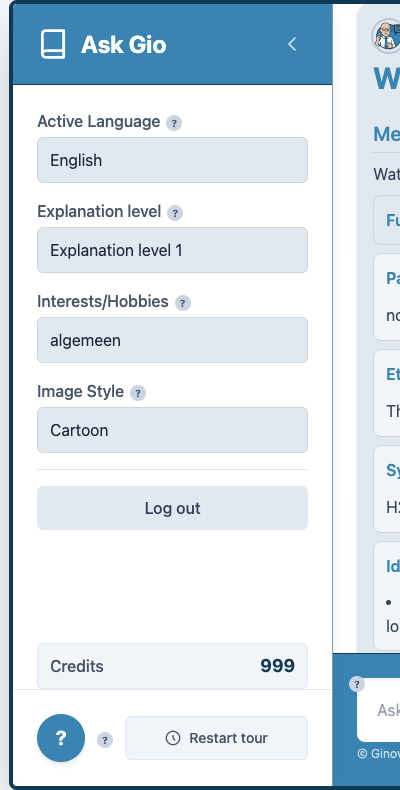
Via the settings panel on the left, set your preferences once. Choose your language (22 available), explanation level (1-4), interests for personalised example sentences, and the image style for illustrations. Tip: look up the same word at multiple levels for a progressively fuller picture — start simple and work your way up.

The settings panel on the left: language, explanation level, interests and image style.
2

Asking a question

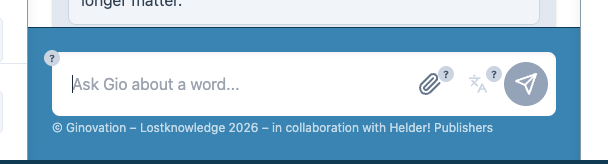
Type a word or question in the input bar at the bottom and press Enter. You can also enter multiple words at once — useful for expressions, phrases or fixed sayings. Paste a whole block of text for a summary or explanation, or to translate from a foreign language into your own. Ask Gio provides an explanation at your level including meaning, example sentences and an image.

Mistyped a word? Gio corrects it and shows 'You searched for ... — showing ...' at the top of the card. If the word really does not exist, you get a clear message instead of an empty card.

The input bar at the bottom, with the paperclip and the translate icon.
3

Active learning: make your own sentences

Words only stick when you actively use them. Read Gio's explanation, study the example sentences — then make as many of your own sentences with the word as possible. Keep going until it flows effortlessly and you feel you truly understand the word. Passive reading fades; active use lasts. This applies equally to expressions and abstract concepts: the more you use them yourself, the more natural they become.

4

Useful commands

Use special commands for extra features:
- /wd word — all meanings of a word in one list, each with its own image
- /q word — quiz with 5 multiple-choice questions: test yourself after reading and find out whether you really understand the word
- /a word — analogy: Gio compares the word to something familiar, so the meaning sticks
- /g word — grammar, conjugations and correct use in sentences
- /i subject — information: encyclopedic background about a place, person, animal, plant, event, film or concept. For a place a small map is added. This is not a dictionary entry
- /vs word1 - word2 — two words side by side with an infographic, for example /vs lend - borrow. Mind the space before and after the hyphen

The quiz, analogy and grammar features are there for a reason: whoever only reads a word forgets it quickly. Whoever tests it, compares it and uses it, remembers it.

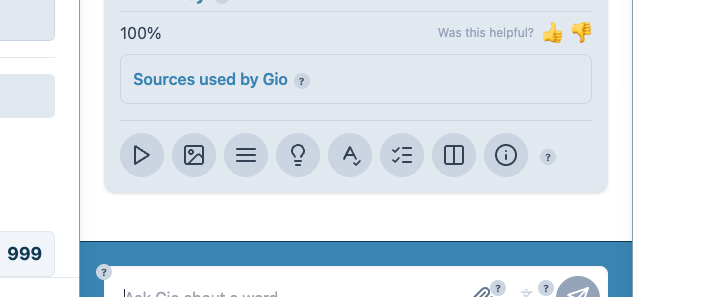
The same features are also buttons under every answer: the light bulb is the analogy (/a), the checklist the quiz (/q), the spell-check icon the grammar (/g), the two panes the comparison (/vs) and the i the information card (/i). Type or click — your choice.

The buttons under each answer: read aloud, image, more meanings, analogy, grammar, quiz, compare and information.
5

Collapsing cards and giving feedback

Every answer from Gio sits on its own card. Click a card's header to collapse it: you then see only the title, the explanation level and the row of buttons. That keeps a long conversation readable, and you can open again whatever you want to reread.

Under every answer there is a thumbs up and a thumbs down. Is the explanation wrong, or the image odd? Click the thumbs down and pick a reason — it reaches us and helps Gio improve. On an information card (/i) you can give a thumb per block, so it is clear exactly which part is off.

A collapsed card: title, level and the row of buttons stay visible.
6

Uploading a photo

Click the paperclip in the input bar to upload a photo. Choose 'Extract text' to copy text from the photo into the input field, or 'Describe image' to have Gio describe the photo.

After uploading you choose: extract the text, or have the image described.
7

Translate button

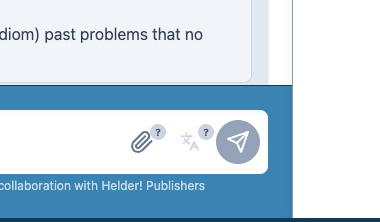
The translate button (the language icon in the input bar) automatically translates your typed text to the language in your settings. If the word has multiple meanings, all of them are shown straight away — so you can see every nuance at a glance and pick the right one for your context. Useful for words in a foreign language, or to translate text from another language into your own.

The translate icon in the input bar.
8

Search history

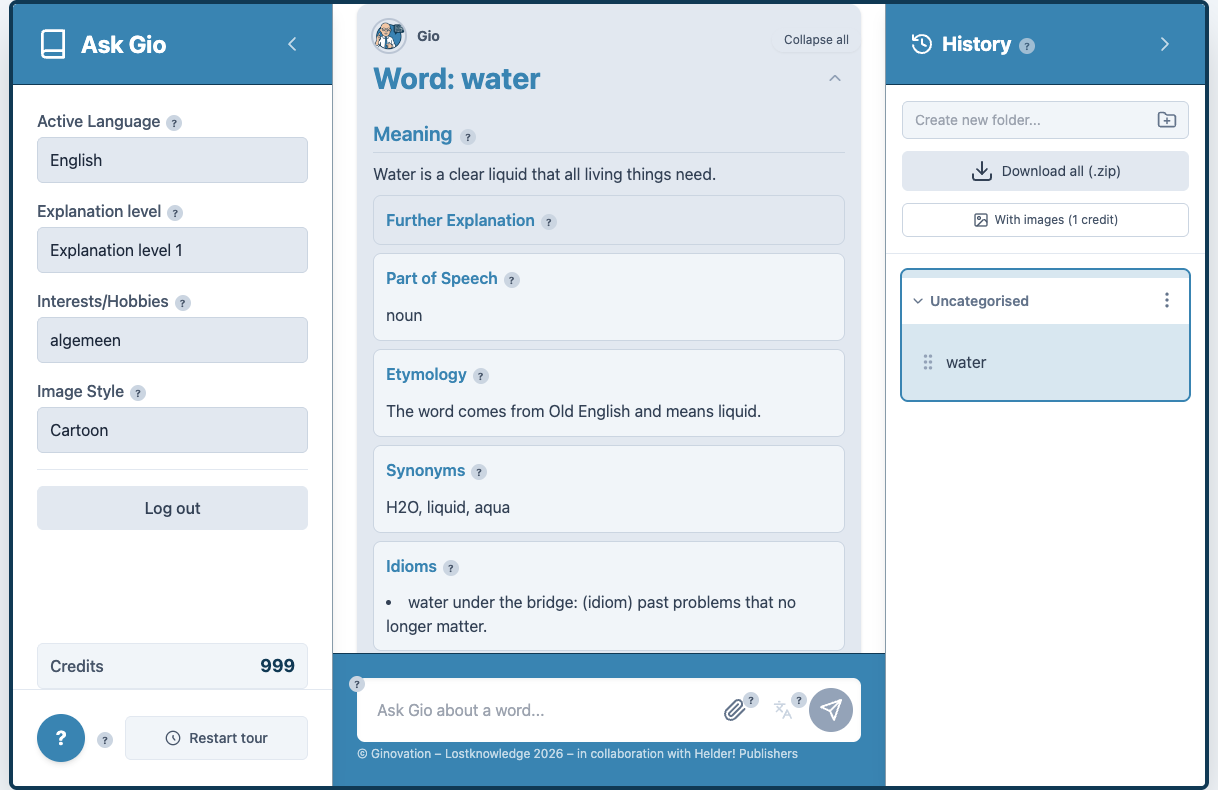
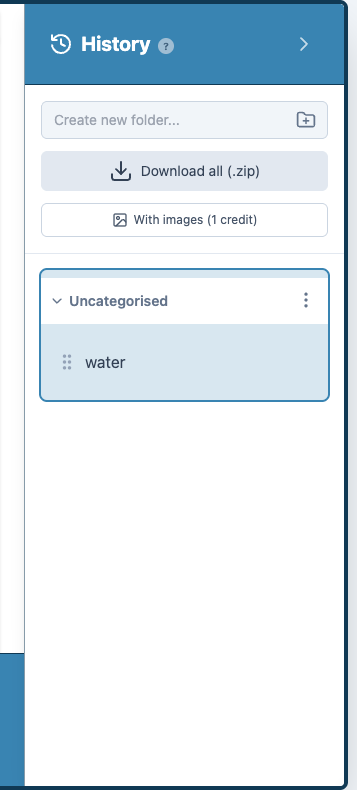
Every word you look up lands in the history on the right. Create folders to organise them and drag words into the right folder. Uncategorised always stays at the top.

Click a folder to make it active: it gets a blue outline and every new word you look up goes there automatically. The three-dot button behind a word or folder lets you rename, move to another folder, move up or down, or delete. Collapse a folder with the arrow in front of it.

Look a word up again — at another level, in another language or with a command — and the entry is updated with the latest answer. A command gets its own entry, for example '/wd bank' next to 'bank'.

The search history on the right, with folders and the download buttons.
9

Saving, printing and PDF

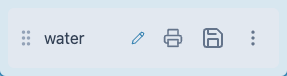
Behind every word in the history are two save buttons: save as a styled document and save as Markdown. The styled document opens in your browser in the Ask Gio house style, with a header and a copyright line on every page. Want a PDF? Open the document, choose print (Cmd-P or Ctrl-P) and then 'Save as PDF'.

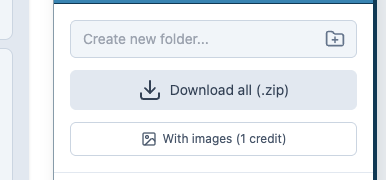
At the bottom of the panel is 'Download all (.zip)'. It holds both the Markdown file and the styled document for every word. This costs no credits.

Below it is 'With images (1 credit)': the same download, but including the images that already exist for your words. No new images are created, and it costs 1 credit for the whole download — whether you keep five words or eighty. Words without an image are included as text only.

You can also save a single folder: choose 'Download folder' or 'Folder + images (1 cr.)' in the folder menu.

Behind every word: the print button (styled document) and the save button (Markdown).
At the top of the panel 'Download all (.zip)' and 'With images (1 credit)'; the folder menu offers the same choice per folder.
10

Your balance and credits

At the bottom of the settings panel you see your balance. When it runs low it turns orange and a warning appears; when it is empty, Ask Gio says so before you look anything up. You also get a message when your subscription expires.

What costs credits: looking up a word, creating an image, and the extra functions behind the buttons and commands. What costs nothing: reading your history, reopening a word that is already there, and downloading without images. Downloading with images costs 1 credit per download.

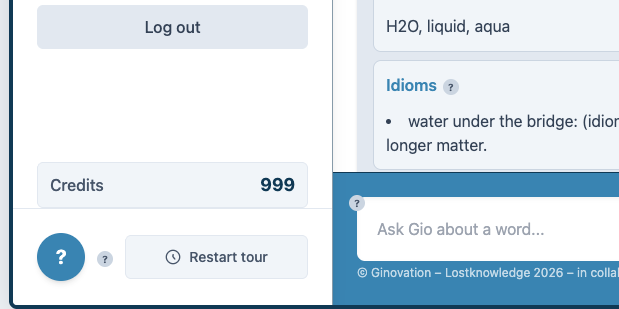
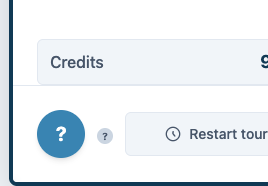
Your balance at the bottom of the settings panel.
11

Need help?

Click the ? button at the bottom of the settings panel for help in your own language: explanations, plus videos and manuals where available. You can also use the small ? icons next to features for direct explanations.

The ? button at the bottom of the settings panel.

Tour overview

# Step Description
1 Welcome to the tour! In a few steps you'll learn all the features of Ask Gio. You can skip the tour at any time using the button below.
2 The settings panel On the left you'll find the settings panel. Here you can change your language, explanation level, interests and image style. Your settings are saved automatically.
3 Choosing a language Choose the language for your explanations. Ask Gio supports 22 languages. Your explanations, example sentences and buttons will be displayed in your chosen language.
4 Explanation level Choose the level that suits you: - Level 1: simple, short sentences, 1-2 meanings - Level 2: 3-5 meanings, figurative use, idioms - Level 3: all meanings, etymology - Level 4: maximum depth with sources and verification Tip: look up the same word at multiple levels. Build from simple to complete understanding. At level 4 the 'Thorough search' switch appears: an extra verification round. Slower, but more accurate.
5 Your interests Enter interests so Gio can choose relevant example sentences. E.g. 'football, music, maths'. The more specific, the more personalised the explanation.
6 Image style Choose the style for automatically generated illustrations: - Cartoon: colourful cartoon style - Realistic: photorealistic - Coloring page: black-and-white to colour in yourself - Pixar: 3D animation style - Painting: artistic painting style
7 Help button Click the ? button for help in your own language. You get explanations, plus videos and manuals where available.
8 Your balance Your balance sits at the bottom of the settings panel. When it runs low it turns orange and Gio warns you in time. Looking up a word and creating an image cost credits. Reading your history and downloading without images cost nothing.
9 The chat window Gio's answers appear here: meaning, explanation, synonyms, example sentences and an image. After reading, make as many of your own sentences with the word as you can — only then will it truly stick.
10 Buttons below the answer Under every word answer there is a row of round buttons: read aloud, image, more meanings, analogy, grammar, quiz, compare and information. Not sure what a button does? Point at it with your mouse or press and hold it on your phone — then you see its name.
11 Collapsing cards and giving feedback Every answer sits on its own card. Click the header to collapse it; you then see only the title, the level and the buttons. Handy for keeping an overview in a long conversation. Is an explanation wrong? Use the thumbs down under the answer. On an information card you can give a thumb per block, so we know exactly which part is off.
12 Asking a question Type a word or question and press Enter. You can also enter several words at once — handy for expressions or word combinations. Or paste a whole piece of text for a summary, an explanation or a translation into your own language. Handy commands: - /wd word — all meanings in one list - /q word — quiz with 5 questions (test yourself after reading!) - /a word — analogy: a comparison that anchors the word in your memory - /g word — grammar, conjugations and usage - /i subject — information about a place, person, animal, plant, event, film or concept - /vs word1 - word2 — two words side by side Remember: words only stick when you actively use them. After every explanation, make as many sentences of your own as you can — until it comes naturally.
13 Looking something up (/i) Type /i followed by a subject — for example /i Venlo or /i elephant. You get an information card with short background: what or who it is, history or habitat, and sometimes a 'did you know'. For a place a small map is added. Note: this is background, not a dictionary entry — for the meaning of a word simply type the word itself. It also works through the i button under an answer.
14 Comparing two words (/vs) Not sure which of two similar words to use? Type /vs word1 - word2, for example /vs lend - borrow. Mind the space before and after the hyphen. You get the difference side by side, with an infographic. It also works through the button with the two panes under an answer.
15 Input bar tools Paperclip: upload a photo. You can choose to: - Extract text from the photo (e.g. a photo of a book page) - Have Gio describe the photo Translate icon: translates your input to the language in your settings. If the word has multiple meanings, all of them are shown straight away — so you can see every nuance at a glance. Arrow: send.
16 Search history Every word you have looked up is here. You can: - Create folders and drag words into them - Make a folder active: new words go there automatically - Rename, move or delete through the three dots - Save a word as a document or as Markdown - Download everything or a single folder as a ZIP
17 Saving, printing and PDF Behind every word are two save buttons: save as a styled document and save as Markdown. The document can be printed or stored as PDF. At the bottom is 'Download all (.zip)' with both files for every word — that costs no credits. Below it 'With images (1 credit)': the same download including images that already exist, 1 credit for the whole download.
18 Ready to start! You now know all the features of Ask Gio. Tip: after each explanation, keep making your own sentences with the word until it flows effortlessly — that's when it truly sticks. Happy learning!